
Barracuda Cloud Archiving Service
To search an online archive of your email, you will need to login to the Barracuda website with your Virginia Western/Microsoft credentials.
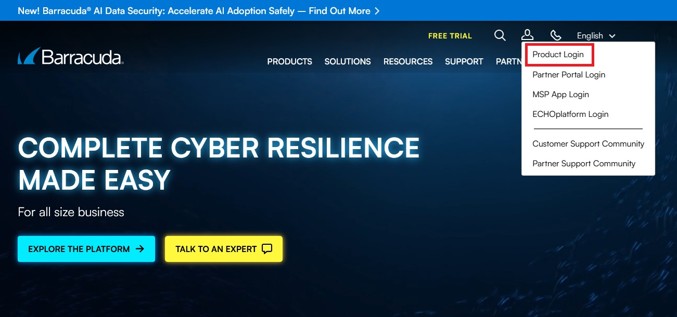
- To log in to the Barracuda website, visit Barracuda Product Login (https://login.barracudanetworks.com/auth/login/). You also can go to the main Barracuda website and click the person icon in the upper right and choose Product Login.
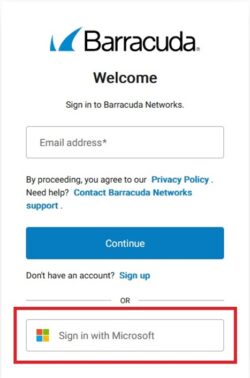
- Click the Sign in with Microsoft button and use your Virginia Western/Microsoft credentials. This may include your 2 factor authentication. If you are already logged in on your computer, you will get a prompt to Pick an account. Make sure you are picking your virginiawestern.edu account.
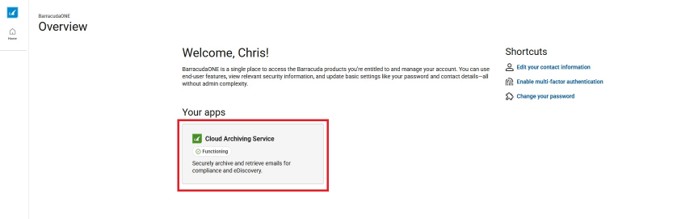
- Once you are logged in, you will be on the BarracudaONE Overview page. Click the Cloud Archiving Service box.
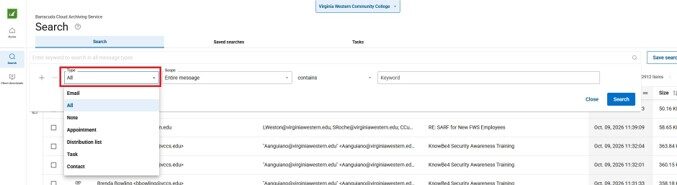
- You can now use the keyword search and filters (highlighted below) to search your email. Select the highlighted icon to open the advanced search fields.

- Use the Type dropdown list to specify what you are searching for. For archived email, select Email. Select All only when the search should include every available item type.
- Use the Scope dropdown list to choose the part of the message to search, such as Entire message, From/Owner, To/CC, Subject, Body, or Attachment name.
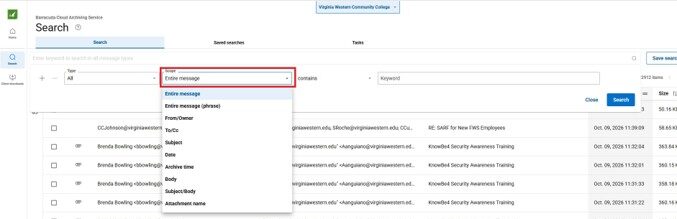
- Choose whether the item you are searching for contains your keyword or does not contain your keyword.

Note: To find an archived email that includes an attachment, set Type to Email, Scope to Has attachment, leave the condition as is true, and click Search. - Enter the word or phrase in the Keyword box, then click Search. Barracuda will display the archived items that match the selected criteria.